1. Controlling the Data Usage
Many of you will know about this feature, but I am sure a
very rare one utilizes this. This is a very helpful feature that comes with
Android. You can monitor your data usage and control it. You can set the
maximum data limit for a particular date.
For that, Open Settings > Data
Usage > Set Mobile Data Limit; here, you can configure
the data limit.
2. Quickly Change WiFi Network
If you want to change the WiFi network, visit Settings > WIFi
or the long-press WiFi icon in the notification shutter. But there is
an easy way to switch between WiFi networks. Just swipe down the notification a
smart, and instead of pressing on the WiFi icon (disable), press on the
network’s name you will be given the list of all networks.
3. Android Device Manager
This feature allows you to track, ring, lock, and wipe your
Android device if you lose track of it. So, make sure to turn on this feature
Go to Settings > Lock Screen and
Security > Other Security Settings > Device
Administrators > Turn on “Android Device Manager.”
4. Create Desktop Backup Password
You can create a backup password for your Android device to
recover it using your desktop. Just follow the below steps to proceed.
- Go to Settings > Developer
Options.
- Tap
on a Desktop backup password.
- Fill
in the current password, then type and retype the new password for a full
backup.
5. Reduce Battery Consumption By Altering Animation
Effects
You can minimize your battery power consumption by using the
neat trick in developer mode, which we’ve explained in the steps mentioned
below.
- Go
to Settings > Developer Options.
- Scroll
down and look for the Window animation scale, Transition animation scale,
and Animator duration scale.
- Now
adjust the scale, and it is better to select 0.5x in all the above
options.
6. Display CPU Usage Overlay
In your Android device, you can enable the full CPU meter to
get displayed on your Android device, by which you can easily judge which app
is putting too much load on your Android.
- Go
to Settings > Developer Options.
- Tick
on the Show CPU Usage option there.
- Now
you will see all your CPU usage at the right of your Android screen.
7. Stop Android Activities Completely After Closing It
Enabling this feature will allow you to stop activities when
you close it completely. This will reduce battery consumption and even data
usage too.
- Go
to Settings > Developer Options.
- Tick
on Don’t keep activities.
- Now,
after this, you can roll back settings by unticking this.
8. Fake The Current GPS Location
For this, you can use the Mock the Location to make your GPS
tracker tool track your exact location, which can be used by many apps to spy
on you.
- Go
to Settings > Developer Options.
- Tick
on Allow Mock Location.
- This
will fake your GPS location tracker on your Android.
9. Enable USB Debugging Mode
In many cool apps, USB debugging is used to perfectly work
your Android with your PC. And this feature is only available in developer
options you can implement below.
- First
of all, go to Settings > Developer Options.
- Tick
on USB Debugging checkbox there.
- Select
OK on the pop that says “Allow USB Debugging?“.
10. Enable Higher Graphic Render Option
MSAA For OpenGL Games can be enabled on your Android device
to allow Android games to run with high graphics quality that can be enabled
by:-
- Go
to Settings > Developer Options.
- Tap
on Force 4x MSAA.
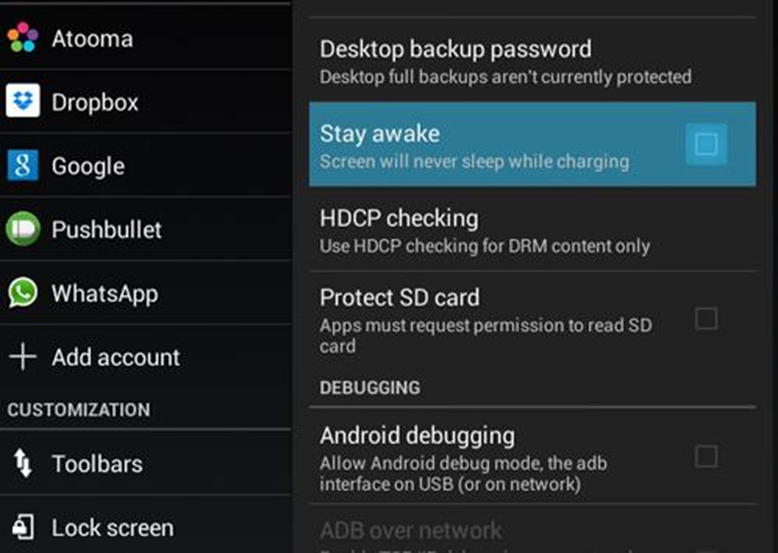
11. Make Your Device Awake while Charging
You can make your Android active while you are charging it,
and it is the best indicator so that you can enable this cool feature as:-
- Go
to Settings > Developer Options.
- Tap
on Stay Awake to tick it.
12. Using Google Chrome To Access File Directory
It is the ultimate hidden ability on your Google Chrome
browser that you might not believe, but you can see your SD memory data in your
Chrome browser. You can do so by:-
- Open
the Google Chrome browser on your Android Smartphone
- Now
type file:///sdcard/ on the URL bar and search.
13. Using Google Maps Offline
Your Android can help you download maps of a particular area
in your Android to browse it when you don’t have an internet connection. Many
of you will think it is impossible, but it is possible. You can go through our
article on How to use Google Maps Offline to learn about it.
14. Sending And Receiving Your Android SMS on a PC
If you are using an Android smartphone, you have a
fashionable solution by which you can get all your SMS on your PC. Moreover,
you can browse them all on your PC, and you will not need to pick up your
Android and read every message.
- You
need to download Airdroid on your Android Smartphone first.
- After
downloading the app on your smartphone, go to web.airdroid.com from
your computer browser.
- Now
scan the QR Code Given on your computer screen with the help of your
Android mobile app.
15. Control Your TV Using Android
You can use your smartphone as a remote controller to
control all your smart devices. There are some apps available on the Google
Play store that helps to control your IR electronic devices remotely. You can
go through our article How To Control Your TV Using Your Android to
discover the apps.
16. Access Notification Settings In A Quicker Way
Well, notifications are useful. However, too many
notifications can become irritating after some time. Users can adjust or turn
the notifications off for a particular app by holding on a notification in the
drop-down notification bar. Users will see a setting icon next to the
notification, from where they can turn the notification off for any particular
app.
17. Display Touch Points
Well, if you love to make some tutorials on your Android
smartphone to share with your friends, then this will be useful. This option
enables a white dot on places where you have touched. Head over to Developer
options and then search for the option “Show Touches” and enable it.
18. Simulate Color Space
Well, the Android operating system implements lots of
features. Once you have enabled the developer mode, you can also simulate the
color space to reduce eye strain. Users need to head over to the Developer
Options and then need to find “Simulate Color Space,” and then can change the
filters of Android.
19. Using The Power Button To End Call
While we are on the call, most of the time, our thumb is
near the power button. So, enabling the Power button to End calls might be the
easiest way to end the ongoing call. You need to head to Settings > Accessibility,
search for the option ‘Power Button Ends Call” and then enable it.
20. High Contrast Text
You can enable the High Contrast Text from Settings > Accessibility if
you have a weak vision. Once you enable the option, your text will appear
crisper and easy to read.
21. Cast Your Android Screen
Well, if we look around for several years, we have been able
to broadcast our Android phone’s display to the larger screen using a
Chromecast. Well, Android users must ensure they have installed the Google Home
app for Android. Open the app, tap Cast screen/audio from its menu, and choose
your Chromecast. Through this, you can even mirror your phone to a larger
screen.
22. Run Apps Side By Side
Well, this new feature has been added to Android 7.0 Nougat.
This new feature allows users to run apps side-by-side or one above the other.
To set up the new feature, tap the Overview button (square icon below the
screen) and then choose which of your recent apps you want to see.
You must hold and drag that app’s title bar to the top or
left of the display. Once done, choose another running app to appear alongside
or under it.
23. Save Web Page As PDF
Well, if we talk about web browsers on Android devices,
without any doubt, Google Chrome is among the first choice of users. Google
Chrome hides a secret that eventually allows users to save a web page in PDF
format.
You just need to open the web page you want to save, head
over to Share > Print, and then save the web page as a PDF.
24. Boot Your Android In Safe Mode
Well, there are times when we have to face the erratic
behaviors of the apps installed on our devices. Well, sometimes we mistakenly
install some apps that display an array of obstructive ads that don’t allow you
to do anything else.
In such situations, it’s best to boot the Android phone in
safe mode. Safe Mode disables all third-party apps, which makes it easy to
recognize and remove bad apps. To boot the phone into safe mode, tap on the
power button and long-press the option to power it off.
25. Space Bar Scrolling
Let’s admit that there are times when scrolling text on our
smartphones seems difficult. Especially if you have a small-screen smartphone.
It doesn’t matter how much we try, our cursor never seems to stop at the right
place. This is where the Gboard app from Google kicks in. Gboard is one of the best Android keyboard apps
available on the Google Play Store.
The keyboard app is made by Google, and it packs some
interesting features. One of those features is the ability to scroll through
the space bar. Users must swipe back and forth over the spacebar to scroll web
pages. Not just that, but users can also hold the backspace button and swipe
left and right to delete the text.
So above are all the Hidden Secrets Of Your Android Device. You can try all these cool features on your Android device and have lots of innovative experiences on your Android device. I hope you like our work, do share it with others too. Leave a comment below if you have any related queries about this.
Thank You. :)